# Connect to a runtime
This page shows you how to connect to a runtime in Colab Enterprise.
To run code in your notebook, you must connect to a runtime. A *runtime*
is a compute resource that runs your code.
## Before you begin
## Connect by using different methods
This page shows you how to connect to a runtime by using the following methods:
- [Use the default runtime](https://docs.cloud.google.com/colab/docs/connect-to-runtime.md.txt#default)
- [Connect to an existing runtime](https://docs.cloud.google.com/colab/docs/connect-to-runtime.md.txt#existing)
- [Create a runtime](https://docs.cloud.google.com/colab/docs/connect-to-runtime.md.txt#create)
## Use the default runtime
This section describes how to connect to the default runtime.
### Required roles
To get the permissions that
you need to connect to the default runtime in a Colab Enterprise notebook,
ask your administrator to grant you the
Colab Enterprise User ([`roles/aiplatform.colabEnterpriseUser`](https://docs.cloud.google.com/gemini-enterprise-agent-platform/machine-learning/general/access-control.md.txt#aiplatform.colabEnterpriseUser))
IAM role on the project.
For more information about granting roles, see [Manage access to projects, folders, and organizations](https://docs.cloud.google.com/iam/docs/granting-changing-revoking-access.md.txt).
You might also be able to get
the required permissions through [custom
roles](https://docs.cloud.google.com/iam/docs/creating-custom-roles) or other [predefined
roles](https://docs.cloud.google.com/iam/docs/roles-overview#predefined).
One or more of the required roles includes the `dataform.repositories.list` permission. Users who are granted the `dataform.repositories.list` permission or the [Code Creator
(`roles/dataform.codeCreator`)](https://docs.cloud.google.com/dataform/docs/access-control#dataform.codeCreator) role in a project can list the names of code assets in that project by using the Dataform API or the Dataform command-line interface (CLI). Non-administrators using BigQuery Studio can only see code assets that they created or that were shared with them.
### Connect to the default runtime
When you run code in a notebook for the first time, Colab Enterprise
automatically connects to the default runtime unless you
[specify a different runtime](https://docs.cloud.google.com/colab/docs/connect-to-runtime.md.txt#connect-existing).
To connect to the default runtime without running code, do the following:
1. In the Google Cloud console, go to
the Colab Enterprise **My notebooks** page.
[Go to My notebooks](https://console.cloud.google.com/agent-platform/colab/notebooks)
2. In the **Region** menu, select the region that contains your notebook.
3. Click the notebook that you want to open. If you haven't created a notebook yet,
[create a notebook](https://docs.cloud.google.com/colab/docs/create-console-quickstart.md.txt#create).
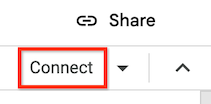
4. In your notebook, click **Connect** .
5. If this is your first time connecting to a runtime with
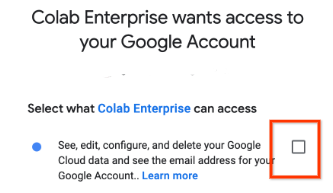
end-user credentials enabled, a **Sign in** dialog appears.
The default runtime has end-user credentials enabled by default. To use a runtime that doesn't have access to your user credentials, [create a runtime template](https://docs.cloud.google.com/colab/docs/create-runtime-template.md.txt) without end-user credentials enabled.
To grant Colab Enterprise access to your user credentials,
complete the following steps:
1. In the **Sign in** dialog, click your user account.
2. Select **See, edit, configure, and delete your
Google Cloud data...** to grant Colab Enterprise
access to your user credentials.
3. Click **Continue**.
Colab Enterprise connects to the default runtime. If the
default runtime isn't running, Colab Enterprise starts
the default runtime, and then connects to it.
## Connect to an existing runtime
This section describes how to connect to an existing runtime by using
the **Connect to Agent Platform runtime** dialog.
### Required roles
To get the permissions that
you need to connect to an existing runtime in a Colab Enterprise notebook,
ask your administrator to grant you the
Colab Enterprise User ([`roles/aiplatform.colabEnterpriseUser`](https://docs.cloud.google.com/gemini-enterprise-agent-platform/machine-learning/general/access-control.md.txt#aiplatform.colabEnterpriseUser))
IAM role on the project.
For more information about granting roles, see [Manage access to projects, folders, and organizations](https://docs.cloud.google.com/iam/docs/granting-changing-revoking-access.md.txt).
You might also be able to get
the required permissions through [custom
roles](https://docs.cloud.google.com/iam/docs/creating-custom-roles) or other [predefined
roles](https://docs.cloud.google.com/iam/docs/roles-overview#predefined).
One or more of the required roles includes the `dataform.repositories.list` permission. Users who are granted the `dataform.repositories.list` permission or the [Code Creator
(`roles/dataform.codeCreator`)](https://docs.cloud.google.com/dataform/docs/access-control#dataform.codeCreator) role in a project can list the names of code assets in that project by using the Dataform API or the Dataform command-line interface (CLI). Non-administrators using BigQuery Studio can only see code assets that they created or that were shared with them.
### Connect to the existing runtime
To connect to an existing runtime:
1. In the Google Cloud console, go to
the Colab Enterprise **My notebooks** page.
[Go to My notebooks](https://console.cloud.google.com/agent-platform/colab/notebooks)
2. In the **Region** menu, select the region that contains your notebook.
3. Click the notebook that you want to open. If you haven't created a notebook yet,
[create a notebook](https://docs.cloud.google.com/colab/docs/create-console-quickstart.md.txt#create).
4. In your notebook, click the **Additional connection options** expander arrow,
and then select **Connect to a runtime** .

The **Connect to Agent Platform runtime** dialog opens.
5. For **Select a runtime** ,
select **Connect to an existing runtime**.
6. For **Select an existing runtime option** ,
select the runtime that you want to connect to. If there aren't
any runtimes in the list,
[create a runtime](https://docs.cloud.google.com/colab/docs/connect-to-runtime.md.txt#create) or
[connect to the default runtime](https://docs.cloud.google.com/colab/docs/connect-to-runtime.md.txt#default).
7. Click **Connect**.
8. If your runtime has end-user credentials enabled, and this is your
first time connecting to a runtime with
end-user credentials enabled, a **Sign in** dialog appears.
To use a runtime that doesn't have access to your user credentials, [create a runtime template](https://docs.cloud.google.com/colab/docs/create-runtime-template.md.txt) without end-user credentials enabled.
To grant Colab Enterprise access to your user credentials,
complete the following steps:
1. In the **Sign in** dialog, click your user account.
2. Select **See, edit, configure, and delete your
Google Cloud data...** to grant Colab Enterprise
access to your user credentials.

3. Click **Continue**.
Colab Enterprise connects to the runtime. If the
runtime isn't running, Colab Enterprise starts
the runtime, and then connects to it.
## Create a runtime
This section describes how to create a runtime and connect to it by using
the **Connect to Agent Platform runtime** dialog. Alternatively, you can
[create a runtime from the **Runtimes** tab](https://docs.cloud.google.com/colab/docs/create-runtime.md.txt).
### Required roles
To get the permissions that
you need to create a runtime in Colab Enterprise,
ask your administrator to grant you the
Colab Enterprise Admin ([`roles/aiplatform.colabEnterpriseAdmin`](https://docs.cloud.google.com/gemini-enterprise-agent-platform/machine-learning/general/access-control.md.txt#aiplatform.colabEnterpriseAdmin))
IAM role on the project.
For more information about granting roles, see [Manage access to projects, folders, and organizations](https://docs.cloud.google.com/iam/docs/granting-changing-revoking-access.md.txt).
You might also be able to get
the required permissions through [custom
roles](https://docs.cloud.google.com/iam/docs/creating-custom-roles) or other [predefined
roles](https://docs.cloud.google.com/iam/docs/roles-overview#predefined).
One or more of the required roles includes the `dataform.repositories.list` permission. Users who are granted the `dataform.repositories.list` permission or the [Code Creator
(`roles/dataform.codeCreator`)](https://docs.cloud.google.com/dataform/docs/access-control#dataform.codeCreator) role in a project can list the names of code assets in that project by using the Dataform API or the Dataform command-line interface (CLI). Non-administrators using BigQuery Studio can only see code assets that they created or that were shared with them.
### Create a runtime and connect to it
To create a runtime and connect to it by using the **Connect to Agent Platform runtime** dialog:
1. In the Google Cloud console, go to
the Colab Enterprise **My notebooks** page.
[Go to My notebooks](https://console.cloud.google.com/agent-platform/colab/notebooks)
2. In the **Region** menu, select the region that contains your notebook.
3. Click the notebook that you want to open. If you haven't created a notebook yet,
[create a notebook](https://docs.cloud.google.com/colab/docs/create-console-quickstart.md.txt#create).
4. In your notebook, click the **Additional connection options** expander arrow,
and then select **Connect to a runtime** .

The **Connect to Agent Platform runtime** dialog opens.
5. For **Select a runtime** ,
select **Create new runtime**.
6. In the **Runtime template** menu,
select a runtime template. If there aren't any runtime templates listed,
[create
a runtime template](https://docs.cloud.google.com/colab/docs/create-runtime-template).
7. In the **Runtime name** field, enter a name for your runtime.
8. Click **Connect**.
9. If the runtime template that you selected has end-user credentials enabled,
and this is your first time connecting to a runtime with
end-user credentials enabled, a **Sign in** dialog appears.
To use a runtime that doesn't have access to your user credentials, [create a runtime template](https://docs.cloud.google.com/colab/docs/create-runtime-template.md.txt) without end-user credentials enabled.
To grant Colab Enterprise access to your user credentials,
complete the following steps:
1. In the **Sign in** dialog, click your user account.
2. Select **See, edit, configure, and delete your
Google Cloud data...** to grant Colab Enterprise
access to your user credentials.

3. Click **Continue**.
Colab Enterprise starts the default runtime,
and then connects to it.
## Switch to a default runtime with GPUs
If your administrator has enabled default runtimes with GPU, or if your
user account has the `aiplatform.notebookRuntimeTemplates.create` permission,
you can switch to a runtime that has GPUs after connecting
to the default runtime.
In your notebook, click **Switch to GPU**.
To learn how to enable default runtimes with GPUs, see
[Enable default runtimes with GPUs](https://docs.cloud.google.com/colab/docs/default-runtimes-with-gpus.md.txt).
## Runtime management
By default, when you create a runtime, you automatically have the
required permissions to
delete (`aiplatform.googleapis.com/notebookRuntimes.delete`) and
start (`aiplatform.googleapis.com/notebookRuntimes.start`) that runtime.
To learn how to manage your runtime, including how to delete, start, or
disconnect from the runtime, see
[Manage runtimes](https://docs.cloud.google.com/colab/docs/manage-runtimes.md.txt).
## Troubleshoot
This section shows you how to resolve issues with connecting to runtimes
in Colab Enterprise.
### Unable to connect to a runtime
This issue occurs due to several reasons. See also
[Unable to connect to a default
runtime](https://docs.cloud.google.com/colab/docs/connect-to-runtime#unable-to-connect-default-runtime-no-template-create-permission).
The most common causes are:
#### Browser blocks third party cookies
The browser that you are using is blocking a third party cookie that
Colab Enterprise uses to establish an HTTPS connection with the runtime.
To resolve this issue, configure your browser's settings to
allow the `DATALAB_TUNNEL_TOKEN` third party cookie from the domain
`*.aiplatform-notebook.googleusercontent.com`.
#### Network blocks outbound traffic to notebook domains
Your network's firewall rules block outbound traffic to
`*.aiplatform-notebook.cloud.google.com` or
`*aiplatform.googleapis.com`.
To resolve this issue, configure your network's firewall rules
to allow outbound traffic to `*.aiplatform-notebook.cloud.google.com`
and `*aiplatform.googleapis.com`.
### Unable to connect to a default runtime
The following error occurs when you try to connect to a default runtime when there
isn't an existing default runtime template.
```
Failed to connect to runtime
```
When you connect to a default runtime that hasn't been created yet,
Colab Enterprise first creates a default runtime template,
and then uses that default runtime template to generate the default runtime.
However, if you don't have the permissions required to create a runtime template, then
Colab Enterprise can't create the default runtime template nor the
default runtime.
To resolve this issue, ask your administrator to grant you a role that includes the
`aiplatform.notebookRuntimeTemplates.create` permission.
### Notebook slow to connect to runtime
A few minutes after starting a connection to a runtime, the `Connecting` message is
still in the top right corner of the notebook, and Colab Enterprise hasn't
connected to the runtime yet.
To resolve this issue, wait a few more minutes. Colab Enterprise is still
connecting to a runtime. Connecting to a runtime that isn't already running can take a few
minutes because Agent Platform is allocating a new virtual machine (VM) instance.
### Unable to create a runtime
This issue occurs when you're unable to create a runtime. See also
[Unable to create a default
runtime](https://docs.cloud.google.com/colab/docs/connect-to-runtime#unable-to-create-default-runtime-no-template-create-permission).
The most common causes are:
#### Unavailable resources
The following error occurs when you try to create a runtime.
```
No available zone found for runtime RUNTIME_ID
for machine type MACHINE_TYPE
with accelerator type: ACCELERATOR. Please try again later.
```
This error occurs if there are no resources available for
your machine type configuration within your notebook's region.
To resolve this issue, try any of the following:
- Create a runtime in a different region.
- Create a runtime template with a different machine type configuration, and then create a runtime based on the new runtime template.
#### Default runtime already exists
The following error occurs when you try to create a runtime from the default runtime template
when the default runtime already exists.
```
Failed to create runtime
One click runtime already exists.
```
If you try to create a runtime from a default runtime template, Colab Enterprise
tries to create a default runtime. There can only be one default runtime per user, project, and
region. If the default runtime already exists, Colab Enterprise is unable to
create another default runtime.
To resolve this issue, connect to the existing default runtime or create a runtime from
a non-default runtime template.
### Unable to create a default runtime
When Colab Enterprise creates a default runtime, it first creates a default
runtime template that it uses to generate the default runtime. If you try to create
a default runtime without the permissions required to create a runtime template, then
Colab Enterprise can't create the default runtime.
To resolve this issue, ask your administrator to grant you a role that includes the
`aiplatform.notebookRuntimeTemplates.create` permission.
## What's next
- Learn more about [runtimes and runtime templates](https://docs.cloud.google.com/colab/docs/runtimes.md.txt).
- [Create a runtime template](https://docs.cloud.google.com/colab/docs/create-runtime-template.md.txt).
- To find a notebook that can help you get your project started quickly, see the [notebook gallery](https://console.cloud.google.com/agent-platform/colab/notebook-gallery).